Docs · Guides · Google Sheets
Google Sheets
Tip: dotted underlines explain technical terms on hover or keyboard focus.
Use the PartLogic API to load inventory into a spreadsheet. Sheets cannot send custom HTTP headers from simple formulas alone, so this guide uses Google Apps Script to call the endpoint below with your X-API-Key header.
GET …/api/stock (full URL)Overview
The flow is: your script runs in Google's cloud, requests JSON from PartLogic (same endpoint and authentication as in the API Reference), then writes rows and columns into the sheet.
Google Apps Script (UrlFetchApp)
    GET https://partlogic-api-stock-dwbbcthkhfb0ceca.ukwest-01.azurewebsites.net/api/stock + X-API-Key header
         ↓
    JSON array (or { rows: [...] })
         ↓
    Sheet tab: headers + data rows
Copy endpoint URL:PartLogic Stock API — /api/stock
Prerequisites
- API key — see the Portal API key guide (or open Integrations directly). Devices you select control which stock appears.
- Stock API — Call with
GETand your API key; same host as in the API Reference, OpenAPI spec, and Try API.ForPartLogic Stock API — /api/stockPARTLOGIC_BASE_URLin Apps Script, use the host only—no path and no trailing slash (everything before/api/stock). - A Google account with permission to edit the spreadsheet and run Apps Script.
Why not IMPORTDATA or a simple formula?
PartLogic requires the API key in an HTTP header (X-API-Key), not in the query string. Functions such as IMPORTDATA only perform a plain GET and cannot set headers, so they cannot reach the API securely. Apps Script is the usual way to call JSON APIs that need private headers.
Set up Apps Script
You will do three things in order: copy the script into the editor, register your API URL and key in Script properties (the code reads them from there—do not put the key inside the script), then run the function once. The first Run usually triggers Google's authorisation screens before the API call can succeed; that is normal.
Example script
Handles both a raw JSON array and an envelope { "rows": [...] }, matching the behaviour described in the API reference.
/**
 * Pulls PartLogic stock into the active sheet.
 * Set PARTLOGIC_BASE_URL and PARTLOGIC_API_KEY in Project Settings → Script properties.
 */
function pullPartLogicStock() {
  const props = PropertiesService.getScriptProperties();
  const base = (props.getProperty('PARTLOGIC_BASE_URL') || '').replace(/\/$/, '');
  const apiKey = props.getProperty('PARTLOGIC_API_KEY');
  if (!base || !apiKey) {
    throw new Error('Set PARTLOGIC_BASE_URL and PARTLOGIC_API_KEY in Script properties.');
  }

  const url = base + '/api/stock';
  const response = UrlFetchApp.fetch(url, {
    method: 'get',
    headers: { 'X-API-Key': apiKey },
    muteHttpExceptions: true,
  });

  const code = response.getResponseCode();
  if (code !== 200) {
    throw new Error('PartLogic API returned ' + code + ': ' + response.getContentText());
  }

  let data = JSON.parse(response.getContentText());
  var rows = Array.isArray(data) ? data : (data.rows || []);

  var sheet = SpreadsheetApp.getActiveSpreadsheet().getActiveSheet();
  sheet.clearContents();

  if (rows.length === 0) {
    sheet.getRange(1, 1).setValue('No rows returned (check API key device permissions).');
    return;
  }

  var headers = Object.keys(rows[0]);
  var table = [headers].concat(
    rows.map(function (row) {
      return headers.map(function (h) {
        var v = row[h];
        return v === null || v === undefined ? '' : v;
      });
    })
  );

  sheet.getRange(1, 1, table.length, headers.length).setValues(table);
}

/** Optional: add Extensions → PartLogic → Refresh stock to the menu */
function onOpen() {
  SpreadsheetApp.getUi()
    .createMenu('PartLogic')
    .addItem('Refresh stock', 'pullPartLogicStock')
    .addToUi();
}
Keep the API key in Script properties, not in sheet cells or in shared script source, so it is not exposed to everyone with view access to the spreadsheet.
Steps
- Prepare the sheet tab. In the spreadsheet, add or pick a tab for stock data (e.g. rename a sheet "PartLogic") and click that tab so it is selected. The script clears the whole tab before writing—do not use a tab that already has data you need.
- Open Extensions → Apps Script. Google opens the script editor in another browser tab; keep the spreadsheet tab open.
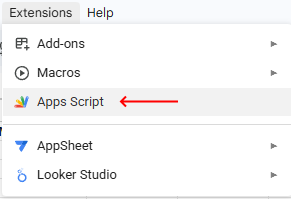
Extensions → Apps Script opens the editor in a new tab. - Paste the script. Select all code in the editor, delete it, paste the example above, and save with Ctrl+S / Cmd+S (or Save project). You should see functions named
pullPartLogicStockand optionallyonOpen.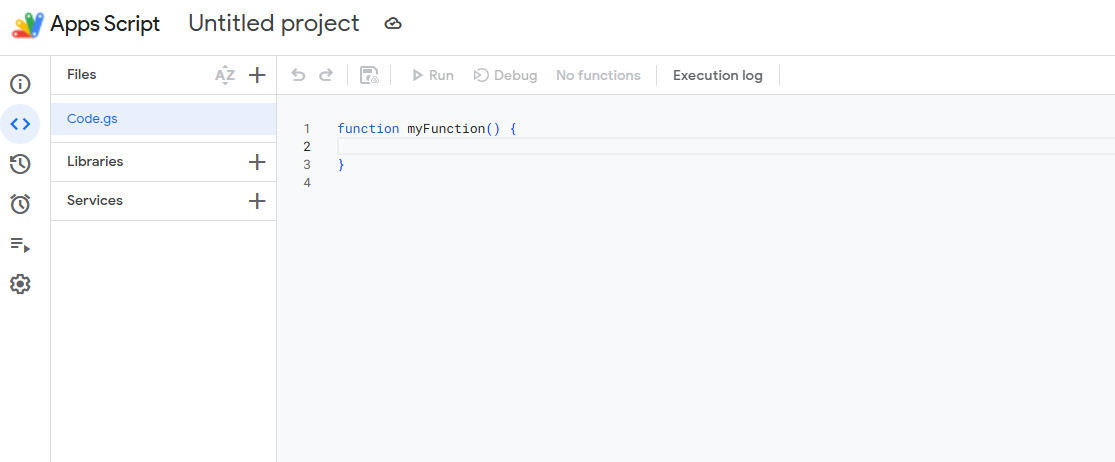
Replace the default myFunctionblock with the example script (entire file). - Add Script properties (still in the Apps Script tab). The code calls
PropertiesService.getScriptProperties(); until you add these, Run will fail. In the left sidebar, open Project settings (gear icon) → scroll to Script properties → Add property for each:PARTLOGIC_BASE_URL— no trailing slash (see openapi.yaml):PartLogic Stock API (production host)PARTLOGIC_API_KEY— your key from the Integrations portal
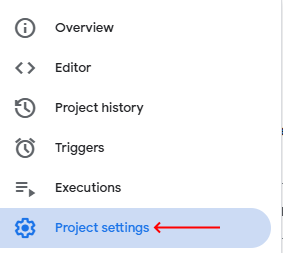
Open Project settings here, then add PARTLOGIC_BASE_URLandPARTLOGIC_API_KEYunder Script properties on that page. - Re-select the target tab in the spreadsheet. Switch to the spreadsheet browser tab and click the tab strip for the sheet that should receive the data (step 1). The script writes to whichever tab is selected when execution runs.
- Save, choose the function, Run, then finish authorisation. Go back to the Apps Script tab. Save again if you changed anything. In the toolbar above the code, open the function dropdown (it may still show
myFunctionuntil the editor refreshes) and selectpullPartLogicStock. Click Run (▶). The first time, Google will usually stop to ask for access: complete Review permissions → pick your account → Allow. If you see Advanced → Go to … (unsafe) → Allow, use that (normal for unverified personal scripts). Approve any question about external URLs orUrlFetchAppso the script can reach PartLogic over the internet (HTTP). After the dialogs close, click Run again if the run did not complete. - Check the spreadsheet. Open the spreadsheet tab: you should see a header row and stock rows. If not, in Apps Script open Executions (clock icon, left sidebar) or read the red error message under the toolbar (e.g. 401 or missing Script properties).
Refresh manually or on a schedule
- Manual: In the Apps Script editor, run
pullPartLogicStockwhenever you want fresh data. WithonOpenincluded, reload the spreadsheet and use the PartLogic → Refresh stock menu item. - Scheduled: In Apps Script, open Triggers (alarm-clock icon in the left sidebar) → + Add Trigger (bottom right). In the dialog, set the function to
pullPartLogicStock, choose event source Time-driven, then pick an interval (for example hourly or daily). Save the trigger. Note Google's quotas for UrlFetch calls on free accounts.- Open the Triggers page from the Apps Script left sidebar (same project as your stock script).
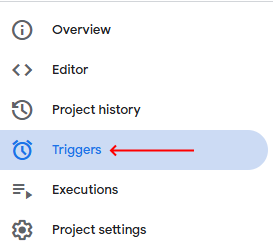
Open Triggers (alarm-clock icon) in the left sidebar—the same project as your stock script. - Click Add trigger to open the trigger configuration dialog.

On the Triggers page, click + Add Trigger (usually bottom right). - Choose
pullPartLogicStock, deployment Head, event source Time-driven, then the type of clock trigger and interval that fit your needs. Click Save.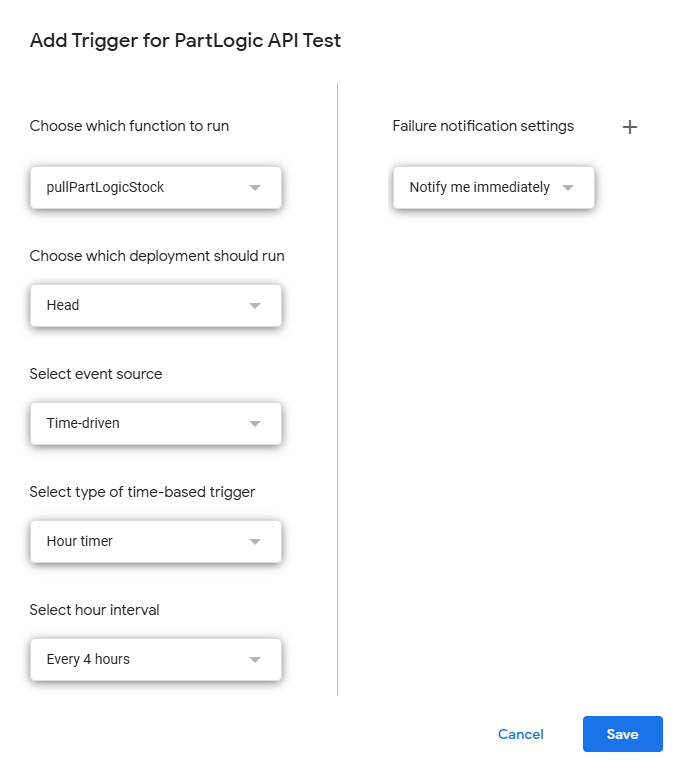
Example settings: Time-driven with an hour-based interval (here every 4 hours) and optional failure email. Pick an interval that fits how fresh stock needs to be and Google's UrlFetch limits for your account, then click Save.
- Open the Triggers page from the Apps Script left sidebar (same project as your stock script).
Alternatives
- Zapier — No-code scheduled sync from PartLogic into Google Sheets; see the Zapier guide.
- Microsoft Excel — Power Query can send the
X-API-Keyheader; steps are in the API Reference (Testing the API). - Custom fields or endpoints — If you need different columns or payloads, PartLogic can provide a tailored API. Contact us.
Need help?
For status codes, empty results, and header details, see the API Reference. For integration support, contact us.