Docs · Guides · Portal API key
Getting an API key from the portal
Tip: dotted underlines explain technical terms on hover or keyboard focus.
Use the PartLogic portal to create an API key for the Stock API, Zapier, Google Sheets, or any integration that sends an X-API-Key header. The key controls which devices your requests may see.
Overview
You will open the Integrations area, start New API Key, set a name and which devices the key may access (and optionally when it expires), generate the key, then copy it to a password manager or secure store. The full secret is shown only at creation time.
PartLogic Integrations (copy URL)1. Open Integrations
Log in to the PartLogic portal, then go to Integrations. The direct link is copied above.
2. Start New API Key
On the Integrations page, click New API Key.

3. Name, optional expiry, and devices
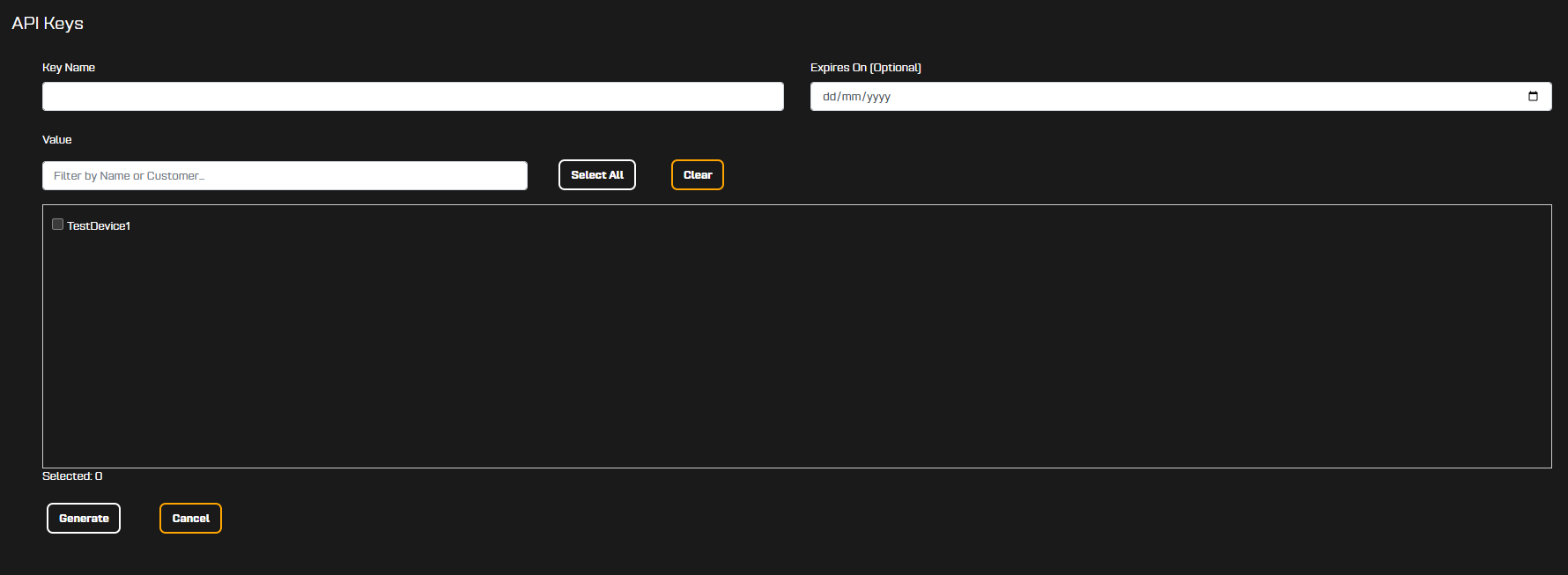
Enter a Key name so you can recognise the key later (for example the system or partner it is for). Use the list to tick the devices this key may access—stock and other data are filtered to those devices. Use Select All or Clear if you have many devices; the filter box helps find them by name or customer.
Expires On is optional. If you set a date, the key stops working after that day—useful when you want time-limited access for an external party or a project with a fixed end date.
When you are satisfied with the name, devices, and optional expiry, click Generate.
4. Copy and store the key
After generation, the portal shows a success message and the full key in a box. Copy it into a password manager or another secure location before you leave this screen.
The complete key value is shown only once. If you lose it, create a new key in the portal and retire the old one there; the portal will not show the secret again.
.png)
When you are done copying, use Return to go back to your API keys list.
Need help?
For how to send the key in requests, see API Reference → Authentication. For Zapier or Sheets, see the Zapier guide and Google Sheets guide. For anything else, contact us.