Docs · Guides · Zapier
Zapier
Tip: hover or focus dotted terms for quick, non-technical definitions.
What is Zapier
Zapier is a no-code platform that connects many applications through automated workflows. What you can automate depends on the actions each app exposes to Zapier.
Authentication uses API keys from the PartLogic Integrations portal, matching the same security model as our public API.
Use cases
The use cases for PartLogic with Zapier range from simple to complex depending on your requirements. Below are popular integrations:
- Sync stock levels from PartLogic to Google Sheets for reporting
- Get instant Slack notifications when stock falls below minimum threshold
- Connect PartLogic to ERP systems (Sage, SAP, Access Dimensions) to eliminate double entry
- Transfer inventory data from PartLogic to e-commerce platforms
- Automatically create PartLogic orders when new rows are added to a spreadsheet
- Sync product information across multiple systems using PartLogic as the central source of truth
- Generate and email inventory reports on a schedule
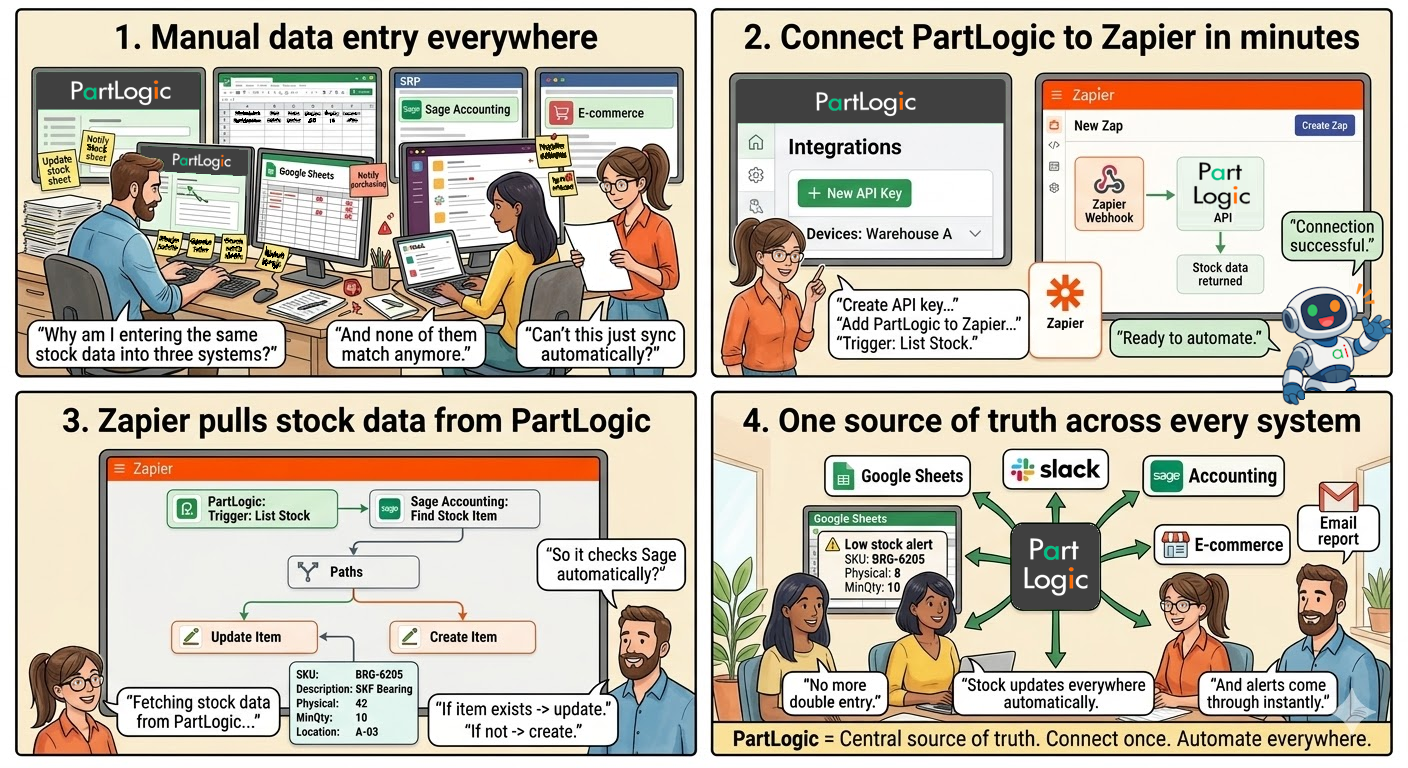
PartLogic + Zapier
PartLogic connects through Webhooks by Zapier using the Custom Request action. You paste the PartLogic API URL and your API key; Zapier fetches stock data without coding. Then map it to any of 6,000+ apps.
Zapier (Webhook) → PartLogic API + API Key
       ↓
    Stock data returned
       ↓
Map to Google Sheets, Slack, ERP, etc.
Stock data & available fields
The PartLogic API returns stock data as JSON with the following fields:
| Field | Type | Description |
|---|---|---|
| DeviceName | String | Name of the device |
| id | Integer | Unique identifier |
| SKU | String | Stock keeping unit code |
| Description | String | Product description |
| MinQty | Integer | Minimum quantity threshold |
| MaxQty | Integer | Maximum quantity threshold |
| Physical | Integer | Current physical stock count |
| Location | String | Storage location code |
| LocationAlias | String | Human-readable location name |
Other fields are available on request. Contact us if you need additional data for your integration.
Getting an API key
API keys are generated through the PartLogic Integrations portal. For screenshots and field-by-field detail, see the Portal API key guide:
- Log in to the PartLogic portal
- Go to the Integrations page
- Click "New API Key"
- Select the devices you want to access and give it a name
- Copy the key (shown only once!)
⚠️ Important: API keys are shown only once during generation. Store them securely. Use Zapier's "Use a custom value" with a secure credential to store your key.
What is a Zap
A Zap maps a trigger (something that starts the workflow) in one app to actions in another. For example, a schedule could run every hour to fetch PartLogic stock and append rows in Google Sheets.
Field mapping
When mapping PartLogic stock data to your Zap, use the following field reference. Run a test request first so Zapier can retrieve sample data for easier mapping.
| Field | Description |
|---|---|
| DeviceName | Name of the device or site |
| id | Unique record identifier |
| SKU | Stock keeping unit code |
| GTIN | Global Trade Item Number (barcode) |
| Description | Product description |
| MinQty | Minimum quantity threshold |
| MaxQty | Maximum quantity threshold |
| Physical | Current physical stock count |
| Location | Storage location code |
| LocationAlias | Human-readable location name |
Creating a Zap: Step-by-step (Sage accounting example)
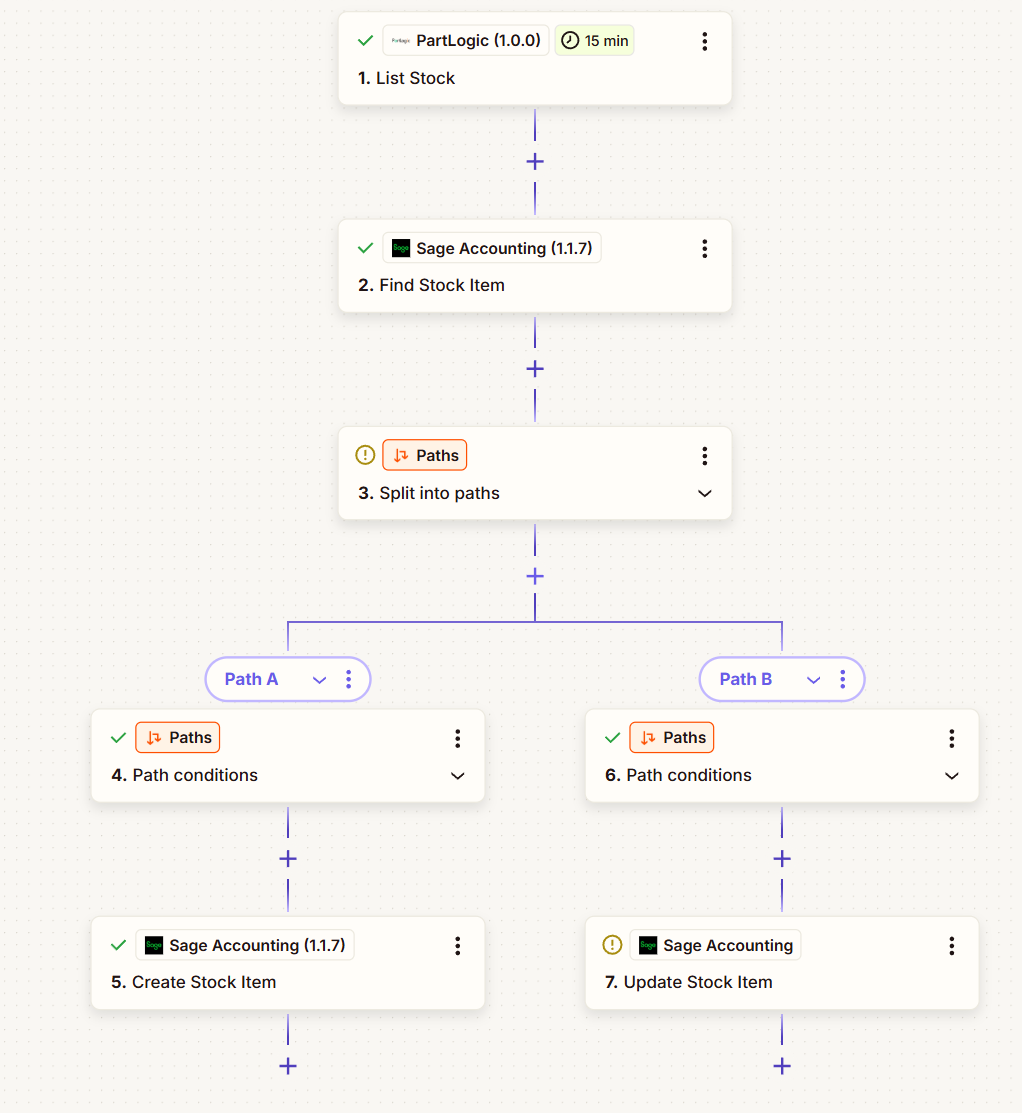
- 1Create a new Zap by clicking the "New Zap" button in the Zapier dashboard
- 2Create a step in your Zap with "PartLogic" as the App
- 2.1Optional, first-time only: Input your API key from the PartLogic Integrations portal
- 3Use the Trigger event "List Stock" to fetch the stock data from the PartLogic portal (Parts module)
- 4Add a step to your Zap to split into 2 Paths (If you find your item you should update, if you don't find it, create a new part)
- 5Add a step for Sage Accounting to update the item, place this under your path "If you find your item you should update"
- 6Add a step for Sage Accounting to create a new item, place this under your path "if you don't find it, create a new part"
- 7Test your Zap by running a test and then turn on your Zap
Need help?
For API details, see the API Reference. For integration support, contact us.